Why Is My Internet Not Working? Troubleshooting Guide & Fixes
Home & Business Internet Blog | MATE | 5 November 2021

Your complete troubleshooting guide for NBN dropouts, WiFi issues, and connection problems, with step-by-step fixes that actually work.
TL;DR – Quick Takeaways
- Most internet problems are either NBN connection faults or Wi-Fi issues. Knowing which one helps you fix it faster
- Check your modem lights first; they’ll tell you if it’s a network problem or something in your home
- Wi-Fi dropouts are usually caused by interference, distance, or too many devices, not your internet connection
- Different NBN connection types (FTTP, HFC, FTTN) have different common issues and fixes
- A simple router restart fixes more problems than you’d think. Try it before anything else
- Always check MATE’s network status page before troubleshooting, there might be a known outage in your area
Start Here: What’s Actually Broken?
Before you start unplugging things, it helps to know what type of problem you’re dealing with. Internet issues fall into three main categories:
- NBN connection problem: No internet at all, even when plugged directly into the modem with a cable
- Wi-Fi problem: Internet works fine on a cable, but drops out or is slow on Wi-Fi
- Device problem: One device can’t connect, but everything else works fine
The fastest way to figure this out: plug a device directly into your modem with an ethernet cable and see if you get internet. If you do, it’s a Wi-Fi problem. If you don’t, it’s an NBN problem.
The Universal First Fix: Restart Everything
Seriously, do this before anything else. It fixes about 60% of internet problems and takes two minutes.
- Turn off your modem/router (unplug it from the power)
- Wait 30 seconds (this matters, give it the full 30)
- Plug it back in
- Wait 2-3 minutes for it to fully restart and reconnect
- Test your connection
If that fixed it, brilliant. If not, keep reading.
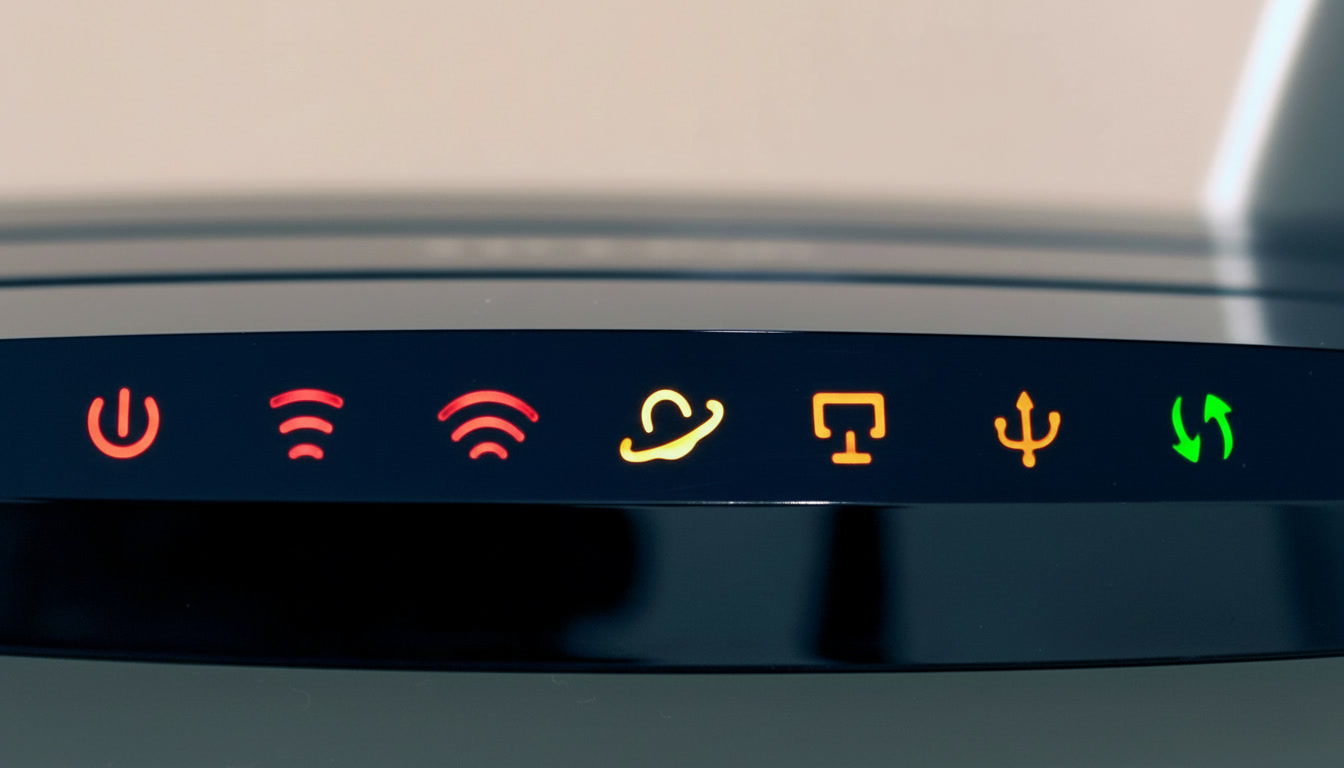
Understanding Your Modem Lights
Your modem lights are like a dashboard for your internet connection. They tell you exactly what’s working and what’s not. Here’s what they mean:
Power Light
- Solid green: Modem has power and is working
- Off or flashing: Power issue. Check the cable is plugged in properly
Internet/WAN Light
- Solid green: Connected to the NBN network – you should have internet
- Flashing: Trying to connect – this is normal during startup, but if it stays flashing for more than 5 minutes, there’s a problem
- Red or off: No connection to the NBN network – could be an outage or line fault
Wi-Fi Light
- Solid or flashing green: Wi-Fi is active
- Off: Wi-Fi is disabled – press the Wi-Fi button on your modem to turn it on
Quick diagnosis: If your internet light is green but you still have no internet, it’s probably a Wi-Fi or device issue, not an NBN fault.
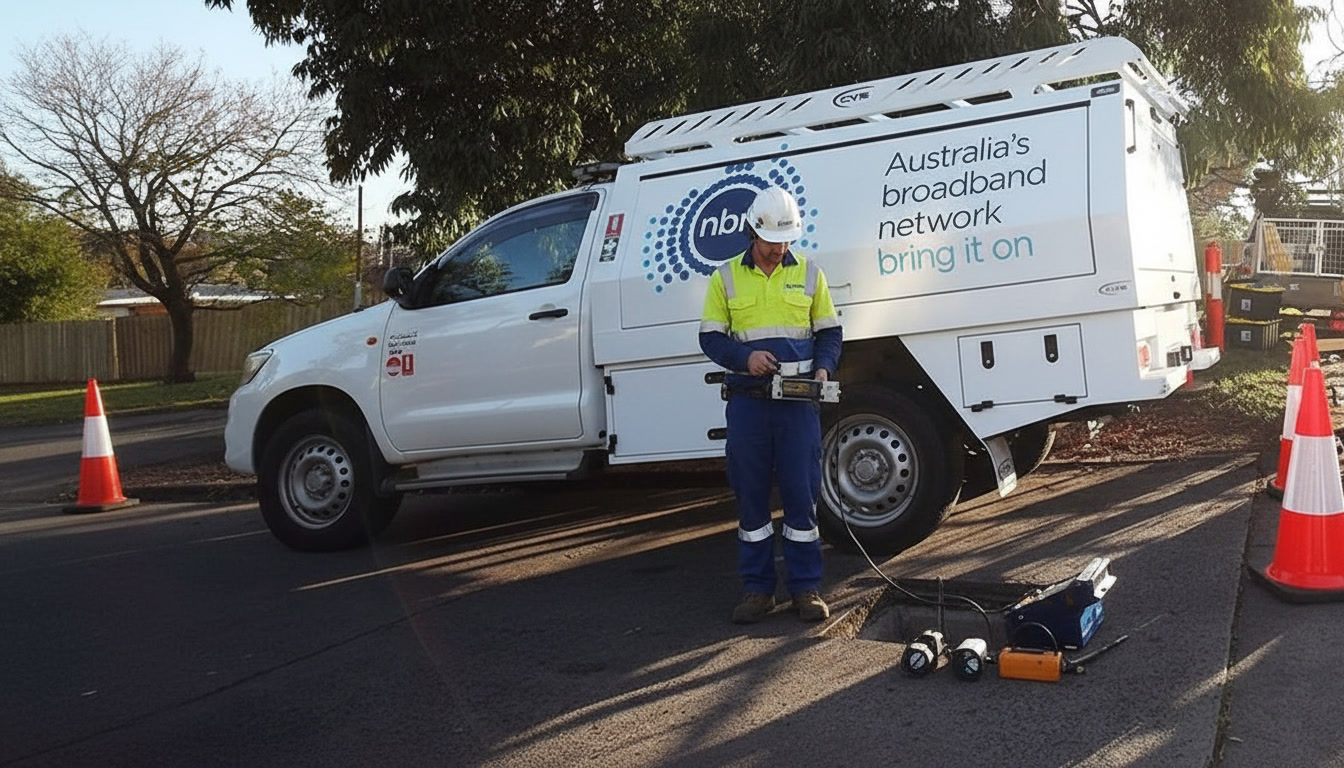
Problem 1: NBN Not Working (No Internet at All)
If you have no internet connection (even when plugged in with a cable) here’s what to check.
Step 1: Check for Known Outages
Before you do anything else, check if there’s a planned outage or fault in your area:
- Visit letsbemates.com.au/mate/network-status/ to see current network issues
- Check the NBN outage checker at nbnco.com.au
If there’s a known outage, there’s nothing you can do except wait for it to be fixed. Save yourself the troubleshooting time.
Step 2: Check Your Cables
Loose or damaged cables cause more problems than you’d think:
- Power cable: Make sure it’s plugged in firmly at both ends
- NBN connection cable: The cable running from your wall socket to your modem, check it’s not loose or damaged
- Ethernet cables: If you’re using one to test, try a different cable
Step 3: Check Your Modem Lights
Look at your internet/WAN light:
- Red or off: No NBN connection. This could be a network fault or an issue with your line. Contact support.
- Flashing (for more than 5 minutes): Modem can’t establish a connection. Try restarting again, then contact support if it continues.
- Solid green: You have an NBN connection. The problem is somewhere else, probably Wi-Fi or device settings.
Step 4: Factory Reset Your Modem (Last Resort)
If nothing else has worked, a factory reset might fix configuration issues:
- Find the reset button on your modem (usually a small hole)
- Press and hold it for 10-15 seconds with a paperclip
- Wait for the modem to restart (5-10 minutes)
- Reconnect your devices
Warning: This will reset your Wi-Fi network name and password to the defaults printed on your modem. You’ll need to reconnect all your devices.
Problem 2: Wi-Fi Keeps Dropping Out
If your internet works fine on a cable but keeps dropping out on Wi-Fi, the issue is with your wireless network, not your NBN connection.
Common Causes of Wi-Fi Dropouts
1. Interference from Other Devices
Your Wi-Fi shares radio frequencies with other electronics. When they’re all trying to use the same airspace, things get messy.
Main culprits:
- Microwaves (especially when running)
- Baby monitors
- Cordless phones
- Bluetooth devices
- Neighbours’ WiFi networks (especially in apartments)
Fix: Move your router away from these devices. If you live in a crowded area, try changing your Wi-Fi channel in your router settings.
2. Too Far from the Router
Wi-Fi signals get weaker with distance. If you’re too far away or there are thick walls in between, you’ll get dropouts.
Fix: Move your router to a more central location, or use a mesh Wi-Fi system to extend coverage.
3. Too Many Devices Connected
Older routers struggle when you’ve got 15+ devices all fighting for Wi-Fi. Each dropout happens when the router can’t handle the load.
Fix: Disconnect devices you’re not using. Upgrade to a modern router (Wi-Fi 6 handles way more devices). Cable your heavy-usage devices like gaming consoles and smart TVs if possible.
4. Outdated Router Firmware
Router manufacturers release updates to fix bugs and improve performance. If you’ve never updated yours, it might be causing dropouts.
Fix: Check your router settings for firmware updates, or contact your provider to do it remotely.
5. Overheating Router
Routers get hot, especially when they’re tucked away in cupboards or surrounded by other electronics. When they overheat, they drop connections.
Fix: Put your router in the open where air can circulate. Don’t stack things on top of it.
Quick Wi-Fi Dropout Fixes
Try these in order:
- Restart your router (30 seconds unplugged)
- Move closer to your router and see if dropouts stop
- Switch to the 5GHz network (less interference)
- Disconnect unused devices
- Change your WiFi channel (in router settings)
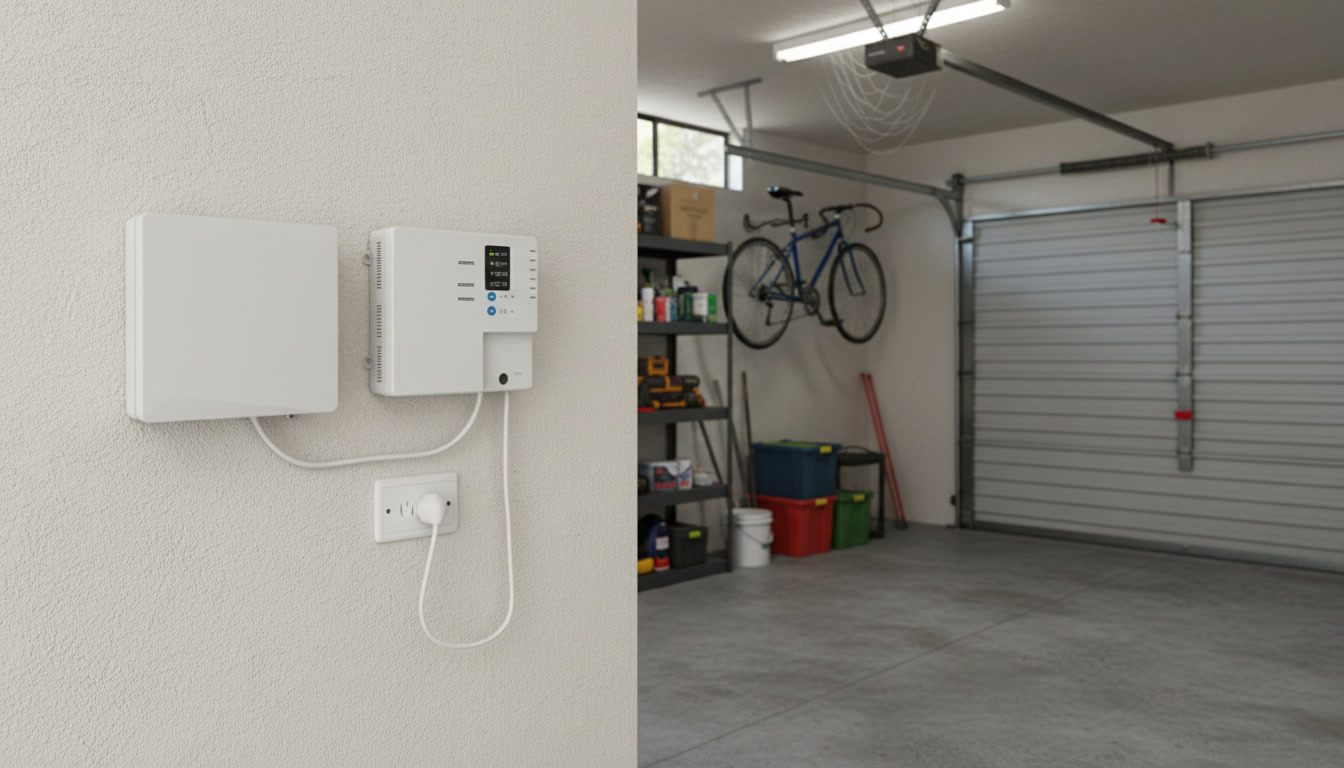
Connection Type Specific Issues
Different NBN connection types have different common problems. Here’s what to know about yours.
FTTP (Fibre to the Premises)
You’ve got fibre running all the way to your house. This is the most reliable NBN connection type, but it’s not completely bulletproof.
Common issues:
- Power outages: The NBN box in your home needs power. If your power goes out, your internet goes with it.
- Damaged fibre cable: Usually only happens during construction or renovations. If someone’s been digging near your property, this might be the issue.
- NBN box failure: Rare, but the NBN connection box can fail. If your modem shows no connection and you’ve checked everything else, contact support.
HFC (Hybrid Fibre Coaxial)
You’re using the old pay TV cable network. Generally reliable, but it can have specific quirks.
Common issues:
- Signal quality problems: HFC is sensitive to signal quality. Damaged cables, loose connections, or network congestion can all cause dropouts.
- Slow speeds during peak times: If lots of people in your area are using HFC at the same time (usually 7-11pm), speeds can drop. This is congestion, not a fault.
- Weather interference: Heavy rain or storms can sometimes affect HFC connections temporarily.
What to check: Make sure your coaxial cable (the thick cable with screw-on connectors) is tightly connected to both the wall socket and your modem.
FTTN/FTTB (Fibre to the Node/Building)
Fibre runs to a box in your street or building, then copper phone lines do the rest. This is the most variable NBN technology.
Common issues:
- Old copper wiring: The phone lines in some areas are decades old. This can cause slow speeds, dropouts, and connection instability.
- Distance from the node: The further you are from the street node, the slower and less stable your connection. There’s not much you can do about this except complain to NBN Co or your provider.
- Weather sensitivity: Water getting into old copper connections can cause dropouts, especially after heavy rain.
- Internal wiring issues: Problems with the phone wiring inside your home can affect your connection.
What to check: Make sure your modem is plugged into the main phone socket (usually the first one installed). Using secondary sockets or extension cables can reduce speed and stability.
If you’re on FTTN and experiencing constant dropouts or very slow speeds, it’s worth getting NBN Co to check your line. Contact MATE support and ask them to raise a line fault ticket.
 When One Device Won’t Connect
If everything else works fine but one device refuses to connect, the problem is with that device — not your internet.
Quick Device Fixes
- Restart the device (turn it off and on)
- Forget the Wi-Fi network and reconnect with the password
- Check for software updates on the device
- Check if the device supports your Wi-Fi network (some older devices can’t connect to 5GHz networks)
When to Contact MATE Support
You should reach out if:
- Your internet light is red or off (no NBN connection)
- You’ve tried all the troubleshooting steps and nothing works
- Your connection drops out multiple times a day
- The problem started suddenly and you haven’t changed anything
- You’re on FTTN and getting speeds way below what you should
- You suspect a line fault or network issue
Before you contact support, have ready:
- What troubleshooting steps you’ve already tried
- What your modem lights are showing
- When the problem started
- Whether it affects all devices or just some
Frequently Asked Questions
Why does my internet drop out at the same time every day?
This usually happens for one of two reasons: scheduled tasks on your modem (like automatic firmware updates) or peak-time network congestion. If it’s happening at 7-11pm, it’s probably congestion. If it’s happening at weird times like 3am, your modem might be updating itself. Check your modem settings or contact support to see if automatic updates can be rescheduled.
Can rain affect my NBN connection?
Yes, but it depends on your connection type. FTTP is mostly immune to weather. HFC can be affected by very heavy rain. FTTN/FTTB is the most vulnerable — water getting into old copper connections can cause dropouts. If your connection always fails after rain, you probably have a line fault. Contact support.
Should I buy my own modem or use the one from my provider?
Provider modems are configured to work straight out of the box, which makes troubleshooting easier. If you buy your own, make sure it’s compatible with your NBN connection type and that you know how to configure it. For most people, the provider modem is the safer option.
Why does my internet work but some websites don’t load?
This is usually a DNS issue, not an internet problem. DNS is like a phone book for websites — it translates web addresses into numbers your computer can understand. Try switching to a public DNS like Google (8.8.8.8) or Cloudflare (1.1.1.1) in your device settings. If that fixes it, your provider’s DNS servers might be having issues.
How do I know if my modem is faulty?
Signs of a faulty modem include: constant dropouts that restart fixes temporarily, lights that randomly turn red or off, the modem getting extremely hot, or it not working even after a factory reset. If you’ve tried everything in this guide and it’s still broken, your modem might be dead. Contact your provider for a replacement.
Can my neighbour’s WiFi slow mine down?
Sort of. In apartments and dense housing, everyone’s WiFi competes for the same radio channels. This creates interference that can slow everyone down. The fix is to change your WiFi channel to one that’s less crowded. Use a WiFi analyser app to see which channels your neighbours are using, then pick a different one.
Why is my internet slow during peak times but fine at 3am?
Network congestion. Between 7-11pm, everyone’s streaming Netflix, gaming, and video calling. Your provider buys a certain amount of bandwidth from NBN Co, and when everyone uses it at once, it slows down. This is more common on older technologies like FTTN. If it’s consistently bad, you might need to switch to a provider with better peak-time capacity.
What does it mean when my modem light is orange?
Orange usually means there’s a problem but it’s not completely dead. On most modems, orange indicates a degraded connection or partial service. Check your modem’s manual for what the specific light pattern means, then restart the modem. If it stays orange, contact support.
How long should I wait before calling support?
If you have no internet at all, check for outages first, then try the basic troubleshooting (restart, check cables, check lights). If that doesn’t fix it within 30 minutes, contact support. For intermittent dropouts, try troubleshooting for a day or two to see if there’s a pattern. If it happens multiple times a day for several days, contact support.
Will upgrading my plan make my connection more stable?
No. A faster plan gives you more speed, but it won’t fix dropouts or connection problems. If your connection is unstable, there’s a fault somewhere — upgrading won’t help. Fix the fault first, then consider upgrading if you need more speed.


Are you ready to be our mate? Call now 13 14 13