The Complete Guide to Faster Internet: How to Get Better WiFi at Home
Mobile Phone & Internet Blog | MATE | 15 April 2026
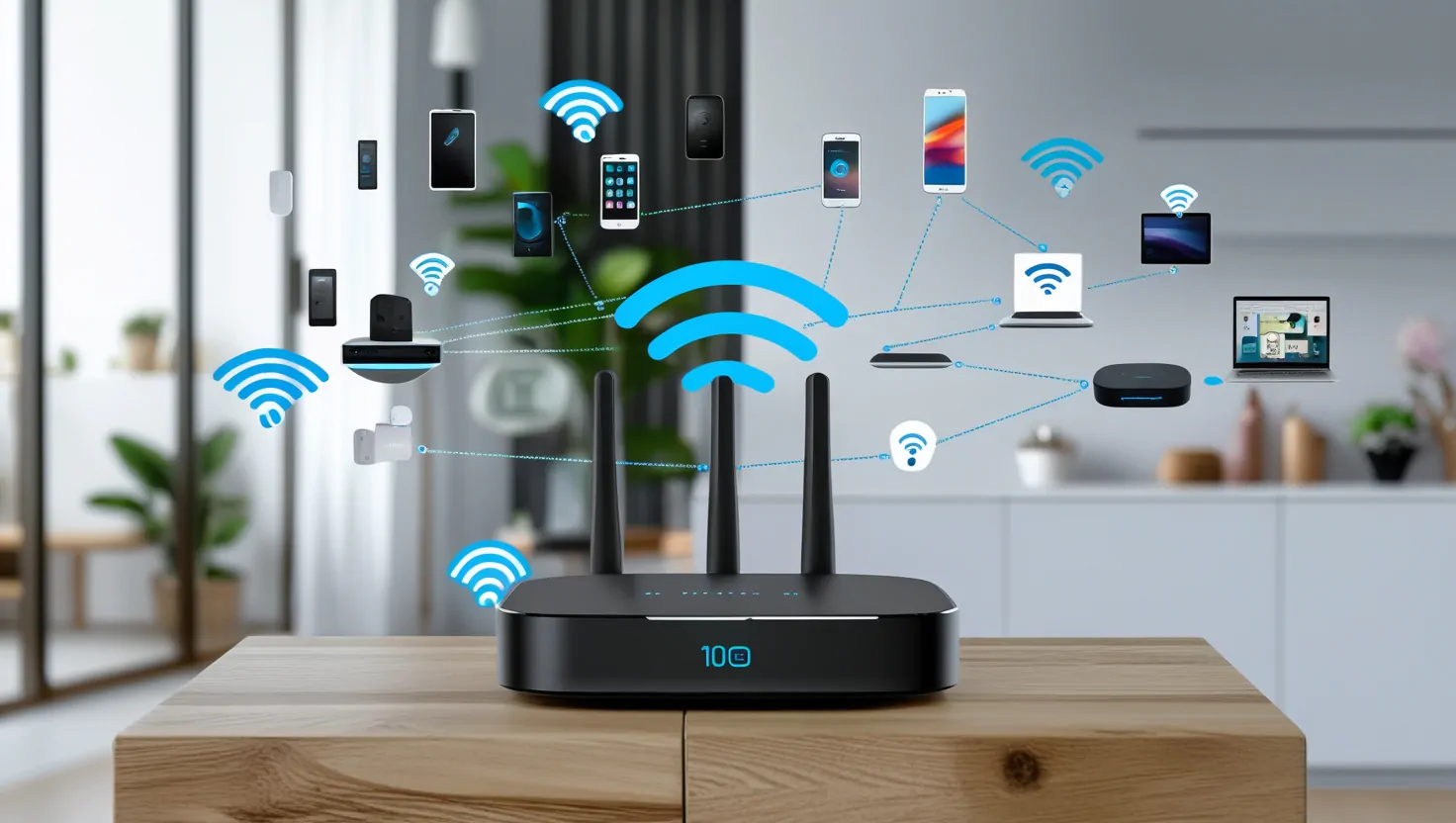
Slow internet is frustrating, but often, it’s your WiFi that’s holding you back. Here’s some easy things you can do to power up your connection and experience the internet speeds you’ve been missing.
TL;DR – Quick Takeaways
- Your internet speed and your WiFi speed are two different things — and fixing one won’t always fix the other
- Most ‘slow internet’ problems are actually WiFi problems happening inside your home
- Your home’s walls, the number of devices connected and your distance from your WiFi network can all slow down your internet, even if your connection is perfect
- Simple changes like router placement and reducing interference can make a huge difference
- For large homes or thick walls, a mesh WiFi system is usually the best solution
- Cable your most important devices whenever possible — it’s faster and more reliable than WiFi
Let’s Talk About Speed (And Why It Gets Confusing)
Regardless of what type of connection is installed at your home, the NBN is still flowing. But somewhere between your internet provider and your laptop, some things can interrupt your service, leaving you with buffering pages and frustrated.
But here’s the thing: when your internet feels slow, it’s usually not your actual internet connection causing the problem. More often than not, it’s your WiFi — the invisible network inside your home that connects your devices to your router.
Think of your internet connection as water flowing into your home through the pipes. No matter how much water is in your mains, if there is a blockage anywhere, you’ll get a trickle. But it doesn’t mean you need to be a plumber or IT professional to figure it out what’s slowing you down and what you can do about it. We’ve taken the 1s and 0s out of it so you can follow these practical steps.
First Things First: Internet Speed vs WiFi Speed
Before you start troubleshooting, it helps to understand what you’re actually dealing with.
Your Internet Speed
This is the speed your internet provider delivers to your home. It’s the connection coming through your phone line or cable. This is what you pay for on your plan — whether that’s 50Mbps, 100Mbps, or 1000Mbps.
Your WiFi Speed
This is the speed you actually get on your devices around your home. It’s controlled by your router and affected by everything from walls to other electronics. Your WiFi speed can never be faster than your internet speed — but it can definitely be slower.
The key insight: Even if you’re paying for super-fast internet, you’ll only experience slow speeds if your WiFi can’t keep up.
How to Tell If It’s Your Internet or Your WiFi
Here’s a simple test:
-
- Connect your device directly to your router with an ethernet cable
- Run a speed test; you can find multiple reliable tests through Google
- Disconnect the cable and run the same test on WiFi
- Compare your results
If the wired speed is fast but the WiFi speed is slow: it’s a WiFi problem. Keep reading — we’ll fix it.
If both speeds are slow: it might be your internet connection. Contact your provider to check if there’s an issue with your service.
What’s Actually Slowing Down Your WiFi
WiFi is basically radio waves travelling through your home. And just like a radio signal, lots of things can interfere with it or weaken it. Here’s what’s probably affecting yours:
1. Distance from your router
The further you are from your router, the weaker your WiFi signal gets. It’s like trying to hear someone shouting from the other end of a football field — technically possible, but not ideal.
What you’ll notice: Full bars right next to the router, but one or two bars in your bedroom upstairs.
2. Walls and Obstacles
WiFi signals struggle to pass through solid objects, with some being worse than others:
- Brick and concrete: major WiFi blockers
- Metal (like filing cabinets or fridges): complete signal killers
- Plasterboard walls: not too bad, but they still weaken the signal
- Water (fish tanks, water heaters): surprisingly effective at blocking WiFi
3. Interference from Other Devices
Your WiFi shares radio frequencies with other electronics that can create ‘noise’ that interferes with your signal:
- Microwaves (serious WiFi disruptors when they’re running)
- Baby monitors
- Bluetooth devices
- Cordless phones
- Your neighbours’ WiFi networks (especially in apartments)
4. Too Many Devices Connected at Once
Every device on your WiFi shares the available bandwidth. Your router can only handle so much at once. Think of it like a high
way — the more cars (devices) using it, the slower the traffic moves.
Between phones, tablets, laptops, smart TVs, gaming consoles, smart home devices, and everything else, many households have 20+ devices fighting for WiFi. That’s a lot of traffic.
5. Old or Outdated Router
If your router is more than 3-4 years old, it might be struggling to keep up with modern demands. Newer routers use better technology, handle more devices, and broadcast stronger signals.
How to Actually Fix Your WiFi
Right, enough theory. Let’s fix this. Start with the easiest solutions and work your way down the list.
Step 1: Move Your Router to a Better Spot
This is the single biggest fix most people can make.
Your router should be:
- Central: Put it in the middle of your home, not tucked away in a corner
- Elevated: Place it on a shelf or mount it on the wall — WiFi broadcasts better from higher positions
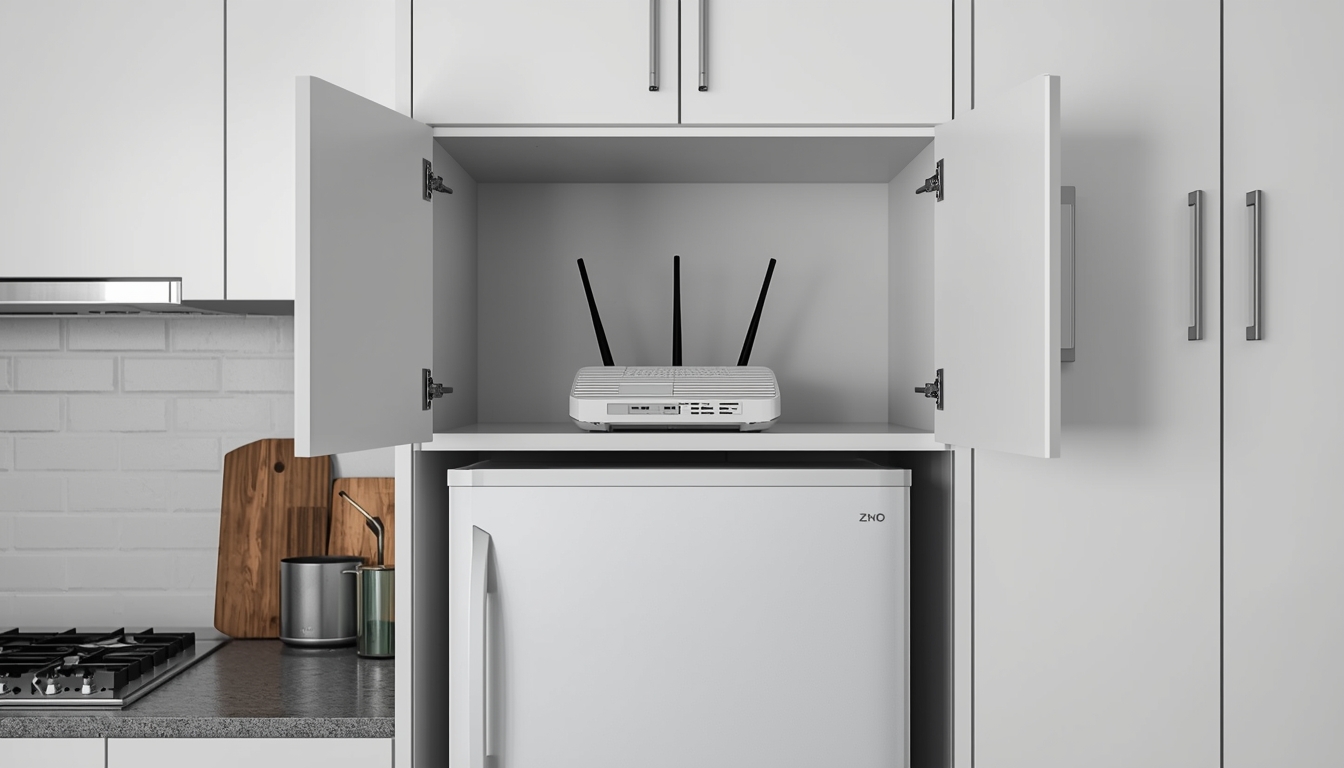
- In the open: Don’t hide it in a cupboard, behind the TV, or under your desk
- Away from interference: Keep it away from microwaves, metal objects, and thick walls
Step 2: Restart Your Router
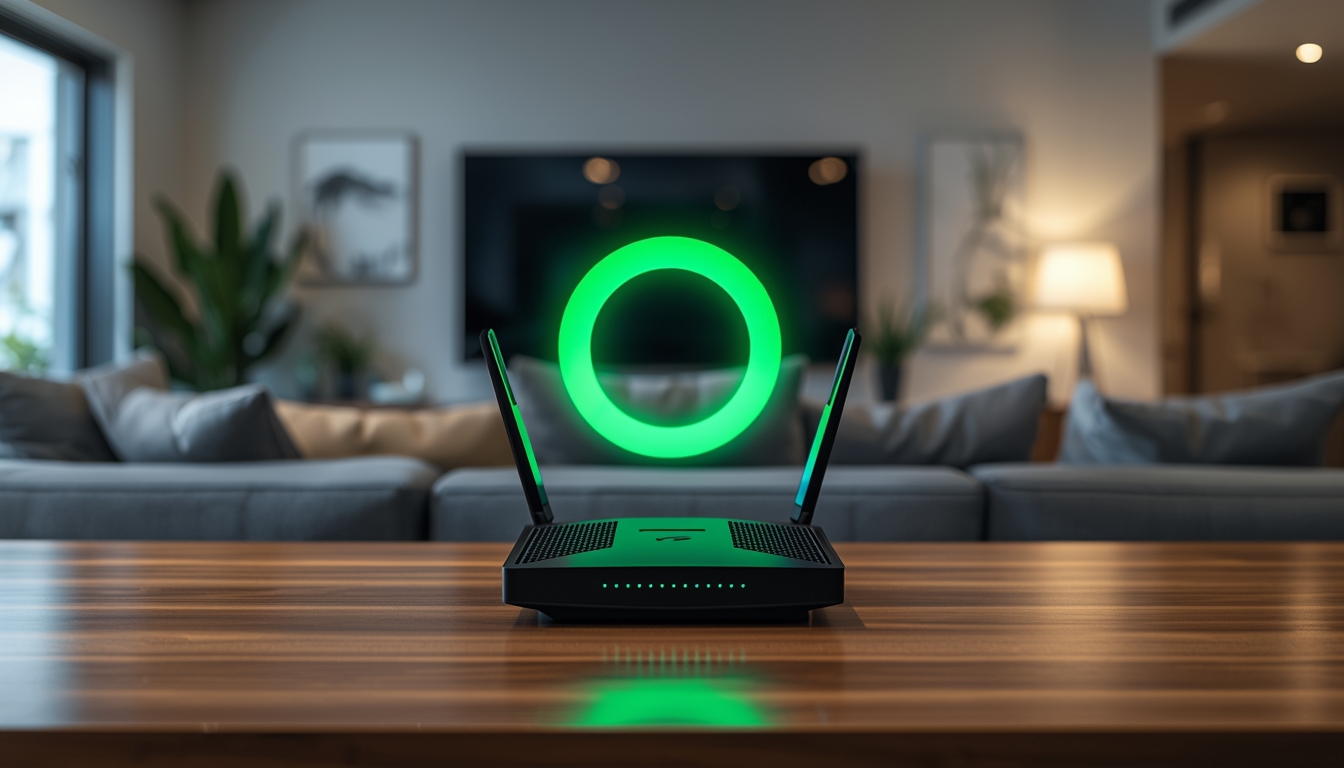
It’s time to pull out one of the oldest tricks in the books; try turning your router on-and-off again. It genuinely works. Sometimes, your router has undergone a software update and restarting it can help push it through. Simply:
- Unplug your router from the power
- Wait 30 seconds
- Plug it back in
- Wait a few minutes for it to fully restart
This clears out temporary glitches and can improve performance. Do this once a month for best results.
Step 3: Switch to the 5GHz Network
Most modern routers broadcast two WiFi networks:
- 2.4GHz: Better range, but slower speeds and more interference
- 5GHz: Faster speeds, less interference, but shorter range
If you’re close to your router (same room or next room), connect to the 5GHz network. You’ll usually see it listed as ‘YourNetworkName-5G’ or something similar in your WiFi settings.
If you’re far away or have thick walls between you and the router, stick with 2.4GHz for better coverage.
Step 4: Reduce the Number of Connected Devices
Disconnect devices you’re not actually using. That old tablet that auto-connects whenever you walk in the door? The smart plug you never use? Your kid’s gaming console that’s downloading updates in the background?
All of these take up bandwidth. Fewer devices = more speed for the ones you actually care about.
Step 5: Update Your Router’s Firmware
Router manufacturers regularly release updates that improve performance and fix bugs. Check your router’s settings (usually accessed by typing 192.168.1.1 or 192.168.0.1 into your web browser) and look for a firmware update option.
If that sounds too technical, contact your internet provider — they can often do this remotely or walk you through it.
Step 6: Change Your WiFi Channel
If you live in an apartment or densely populated area, your WiFi is probably competing with dozens of your neighbours’ networks. They’re all trying to broadcast on the same ‘channels’ (think of them like radio stations).
Most routers automatically choose the best channel, but sometimes they get it wrong. You can manually change the channel in your router settings, or use a WiFi analyser app to see which channels are least crowded.
Step 7: Consider Upgrading Your Router
If your router is old (3+ years), it might be time for an upgrade. Modern routers are:
- Faster
- Better at handling multiple devices
- More reliable
- Equipped with newer WiFi standards (look for WiFi 6 or WiFi 6E)
Contact your internet provider — many offer router upgrades as part of your plan.
Your WiFi Has a Secret Limit (And Why It Matters)
Here’s something most people don’t realise: your WiFi can only move data so fast — and it’s often slower than your actual int
ernet speed. This is especially true for older routers which may have WiFi hardware that simply can’t keep up with modern internet speeds and be unable to process speeds above a certain threshold.
For example, if you’re paying for a 100Mbps internet plan but your router only supports WiFi speeds of 50Mbps, you’ll never get faster than 50Mbps on WiFi — no matter how good your internet connection is.
The fix: Make sure your router and devices support the speeds you’re paying for. If they don’t, it’s time to upgrade.

The Best Solution for Whole-Home WiFi: Mesh Systems
If you’ve got a large home, thick walls, or multiple floors, a mesh WiFi system is hands-down the best way to get solid WiFi coverage everywhere.
What is a Mesh System?
Instead of one router trying to cover your whole house, a mesh system uses multiple units (usually called ‘nodes’) that work together to
create one seamless WiFi network.
Think of it like having multiple WiFi routers strategically placed around your home, but they all talk to each other and act as one network. You walk from room to room and your devices automatically connect to whichever node has the strongest signal — no manual switching between networks, no dropouts.
Why Mesh Systems Beat Traditional Routers
- Complete coverage: Put nodes where you need them — upstairs, in the home office, out in the granny flat. No more dead zones.
- Seamless roaming: Your phone stays connected as you move around the house. No disconnecting and reconnecting.
- Better performance: Each node broadcasts a strong signal within its zone, so you get fast speeds throughout your home — not just near the main router.
- Easy to expand: Need coverage in a new home extension or further afield in the garden? Just add another node.
- Smart device management: Modern mesh systems effortlessly handle multiple connected devices, making them ideal for homes full of phones, tablets, smart speakers, security cameras, and everything else.
How Easy are They to Set Up?
Much easier than you’d think. Most mesh systems set up through an app on your phone:
- Plug in the main node and connect it to your internet connection
- Download the app and follow the setup wizard
- Place the other nodes around your home (the app usually helps you find the best spots)
- Done — seriously, that’s it
The whole process usually takes 10-15 minutes. No technical knowledge required.
Is it Worth the Cost?
If you’ve got a house where WiFi drops out routinely in certain rooms, or you’re constantly fighting to get signal upstairs, absolutely. The difference between struggling with dead zones and having whole-home WiFi coverage is massive.
For apartments or smaller homes where a single router covers everything fine, you probably don’t need one. But for anything bigger than a small two-bedroom unit, mesh systems are a game-changer.
Bottom line: If coverage is your problem, mesh WiFi is your solution.
When to Ditch WiFi and Use a Cable Instead
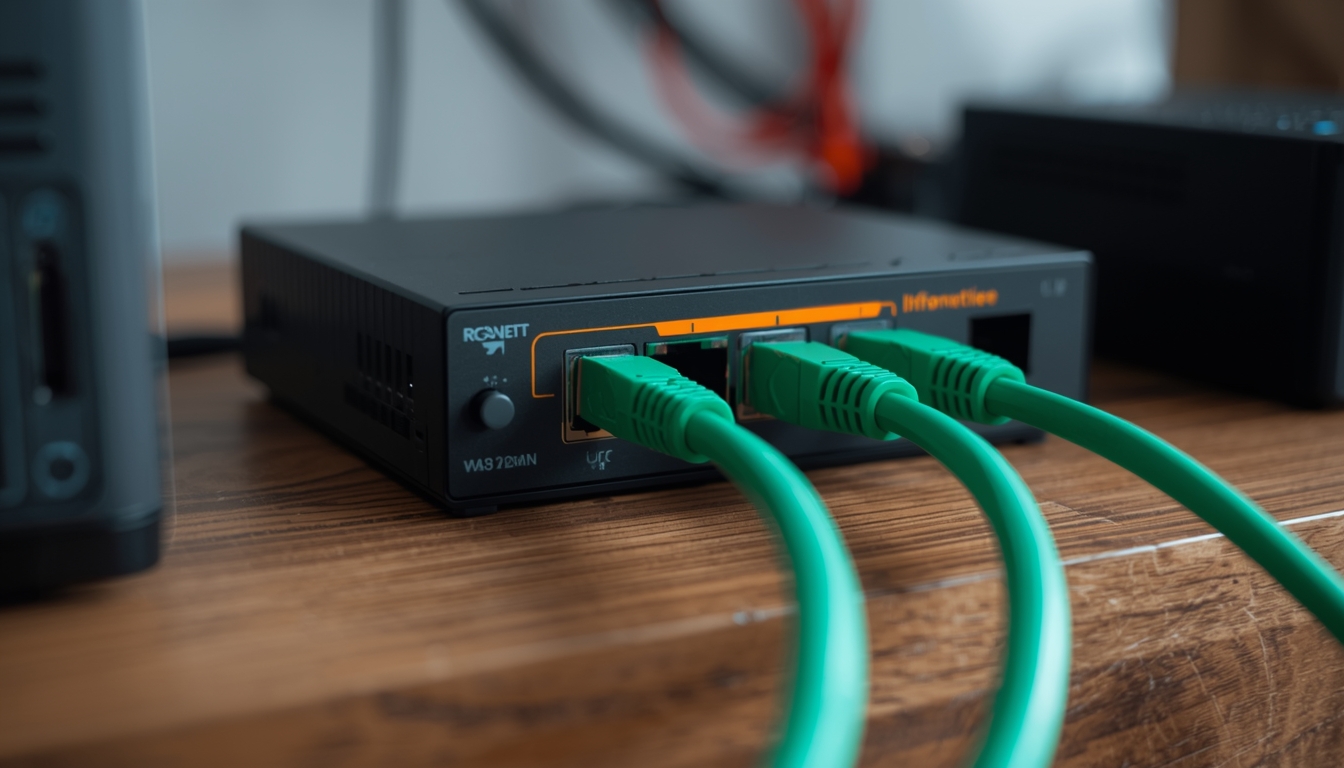
WiFi is convenient, but it’s not always the best option. For some devices and situations, plugging in an ethernet cable will give you much better performance.
Why Cables Beat WiFi
- Faster speeds: You’ll get the full speed of your internet connection, no WiFi bottleneck
- More reliable: No dropouts, no interference, no signal issues
- Lower latency: Better response times — crucial for gaming and video calls
- Doesn’t share bandwidth: Each cable gets its own dedicated connection to the router
What Should You Cable?
Cable these devices whenever you can:
- Gaming consoles and PCs: Wired connections make a huge difference to your gameplay by reducing lag and providing you more consistent speeds.
- Smart TVs and streaming devices: Stops buffering on 4K content and makes streaming rock-solid, even when multiple people are streaming at once.
- Work-from-home computers: More reliable for video calls, faster file uploads and downloads, and won’t drop out during important meetings.
- Desktop computers: If it sits in one spot and doesn’t move, cable it. No reason not to.
- Mesh WiFi nodes: If you can run cables between your mesh nodes (called ‘backhaul’), they’ll perform even better. Not essential, but it’s the ultimate setup if you’re able to do it.
When WiFi Makes More Sense
Obviously, you can’t cable everything. Keep these on WiFi:
- Phones and tablets (they move around)
- Laptops you use in different rooms
- Smart home devices (speakers, cameras, sensors)
- Anything where running a cable isn’t practical
How to Set It Up
Setting up a wired connection is dead simple:
- Get an ethernet cable (Cat5e or Cat6 — available at any electronics shop)
- Plug one end into your router
- Plug the other end into your device
- That’s it — your device will automatically use the wired connection
If your router doesn’t have enough ethernet ports, an ethernet switch adds more — think of it as a power board for cables.
Pro tip: Even if you can only cable one or two key devices, do
it. Every device you take off WiFi frees up bandwidth for the devices that need to stay wireless.
When to Actually Contact Support
You should reach out to your internet provider if:
- Your wired connection is also slow (not just WiFi)
- You’ve tried all the steps above and nothing has improved
- Your connection drops out frequently
- The problem started suddenly (could be a network fault)
- You’re getting speeds way below what you’re paying for
Be ready to tell them what you’ve already tried — it’ll speed up the troubleshooting process.
Quick Wins You Can Try Right Now
If you only have five minutes, here are the fa
stest fixes:
- Restart your router (unplug for 30 seconds, plug back in)
- Move closer to your router (or move the router closer to you)
- Switch to the 5GHz network (if you’re close to the router)
- Disconnect devices you’re not using
- Close background apps and updates on your devices
These five steps solve most WiFi problems and take less time than making a cup of tea.
The Bottom Line
Most internet speed problems aren’t actually internet problems — they’re WiFi problems that are almost always solvable without needing to call support or upgrade your plan.
Start with the simple stuff: move your router, restart it, switch networks, reduce connected devices. For larger homes or coverage issues, invest in a mesh WiFi system. Cable your important devices when you can — gaming gear, smart TVs, work computers. And if you’ve tried everything and it’s still slow, then it’s time to contact your provider.
The good news? With a few strategic changes, you can turn your frustratingly slow WiFi into something that actually works the way it should. And that’s worth the 20 minutes it takes to sort it out.
Frequently Asked Questions
Why is my Wi-Fi slow at night?
It’s often due to network congestion. During peak hours (usually 7-11pm), everyone in your area is more likely to be online, whether streaming, gaming, or video calling. This can slow down your connection if you live in a region using older connection technology such as FTTN. In these cases, your WiFi might also be competing with more of your neighbours’ networks. To improve your online experience, try switching to a less crowded WiFi channel or upgrading to a faster plan if this happens regularly.
Will a VPN slow down my internet?
Yes, usually. A VPN encrypts your data and routes it through a server in another region by default or one of your choosing. While a VPN can be a great tool for privacy and security, it adds an additional layer to your connection and can reduce your speed by up to 10-50%.
How many devices can I connect to my Wi-Fi before it slows down?
It depends on your router, but most modern routers can handle 20-30 devices without major issues. The real limitation is bandwidth — if multiple devices are doing heavy tasks, such as 4K streaming, gaming, and large downloads simultaneously, you’ll notice slowdowns. If you have an older router, you’ll often see it struggle with 10 to 15 connected devices.
Should I hide my Wi-Fi network name?
No. Hiding your network name (SSID) doesn’t make it more secure, anyone with basic tools can still find it. It just makes it harder for your own devices to connect. Focus on using a strong password instead.
Why does my Wi-Fi drop out randomly?
Common causes include: interference from other devices (microwaves, baby monitors), too many devices connected, outdated router firmware, or a failing router. Try the restart and firmware update steps first. If it keeps happening, contact your provider, it could be a hardware fault.
Can weather affect my Wi-Fi?
Severe weather won’t affect your Wi-Fi directly, but it can impact your internet connection, causing temporary slowdowns and dropouts, particularly if you use wireless broadband like Fixed Wireless or Mobile Broadband. Your in-home Wi-Fi is unaffected unless there’s a power outage.
Is it worth upgrading to Wi-Fi 6 (or 7)?
Updating your router to WiFi 6 offers advantages for households who need to connect several devices at once, such as smart home devices, or have multiple users streaming and gaming. WiFi 6 protocols are able to process faster speeds and manage multiple devices more efficiently.
Why is my upload speed so much slower than my download speed?
It’s completely normal. Residential internet plans typically prioritise download speeds to match user behaviour, whether browsing, streaming or gaming. Upload capacity is sized for everyday tasks like video calls, cloud backups, and sharing to social media. If you regularly edit video or transfer large files for work, consider upgrading to a plan with higher speeds across the board.
Will upgrading my internet plan fix my Wi-Fi?
Only if your Wi-Fi can actually handle the faster speeds. If you’re on a 50Mbps plan and upgrade to 100Mbps, but your router can only deliver 40Mbps over Wi-Fi, you won’t see any improvement. Fix your Wi-Fi issues first, then consider upgrading your plan if you genuinely need more speed.
What’s the difference between a mesh system and a Wi-Fi extender?
Mesh systems create one seamless network where your devices automatically switch between nodes as you move around. Wi-Fi extenders create separate networks that you have to manually switch between, and they often cut your speed in half because they use the same channel to receive and rebroadcast the signal. For whole-home coverage, mesh systems are much better.


Are you ready to be our mate? Call now 13 14 13