Moving house? Easy — you can move your internet service using the self-care portal or the myMATE app.
This is the quickest way to get everything sorted without needing to contact support.
Get started
Head to:
- Self-care portal (best on desktop)
- myMATE app (best on mobile)
Move your service using self-care (desktop)
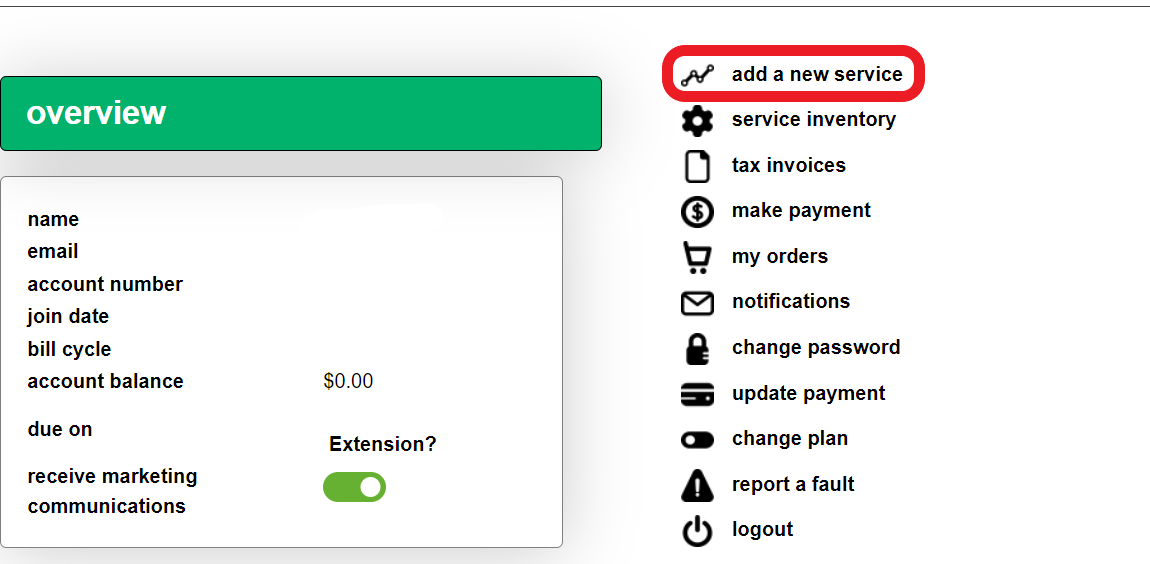
- Click “Add a new service”
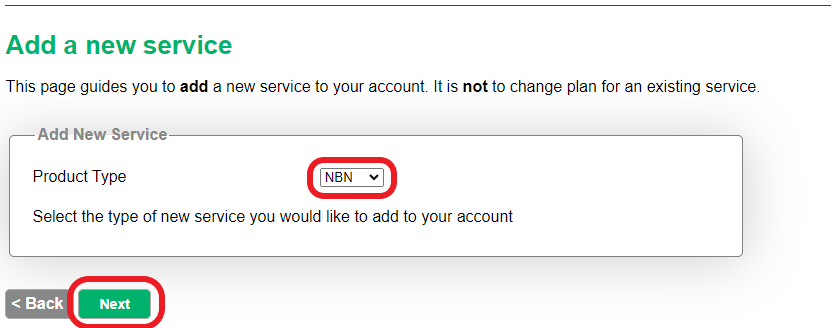
- Choose internet and click Next
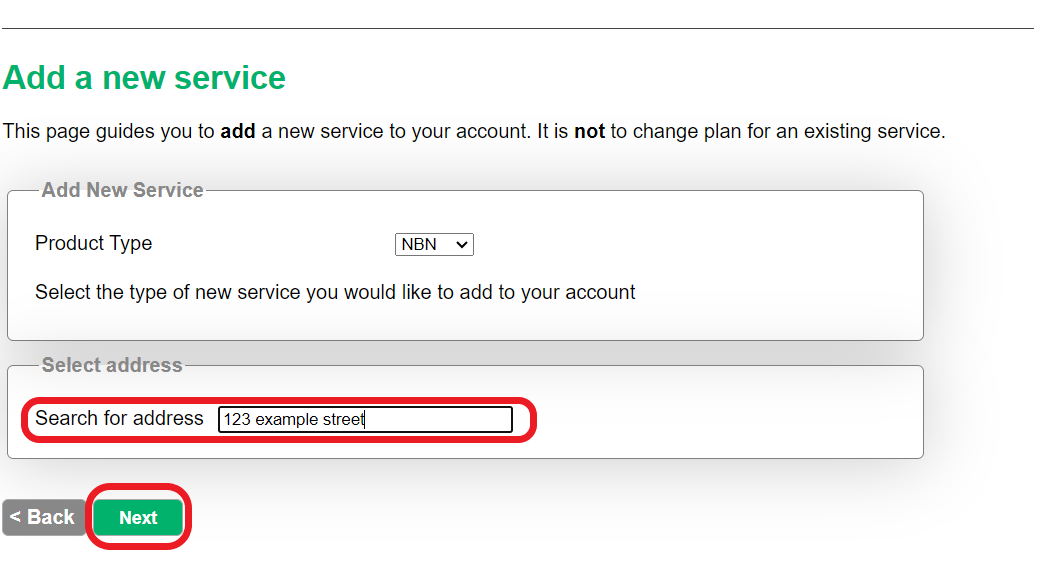
- Enter your new address and click Next
- Follow the prompts to choose your plan and continue
- Set your preferred activation date (or leave it blank for ASAP)
- Select your current service to cancel
- Choose when you’d like it disconnected
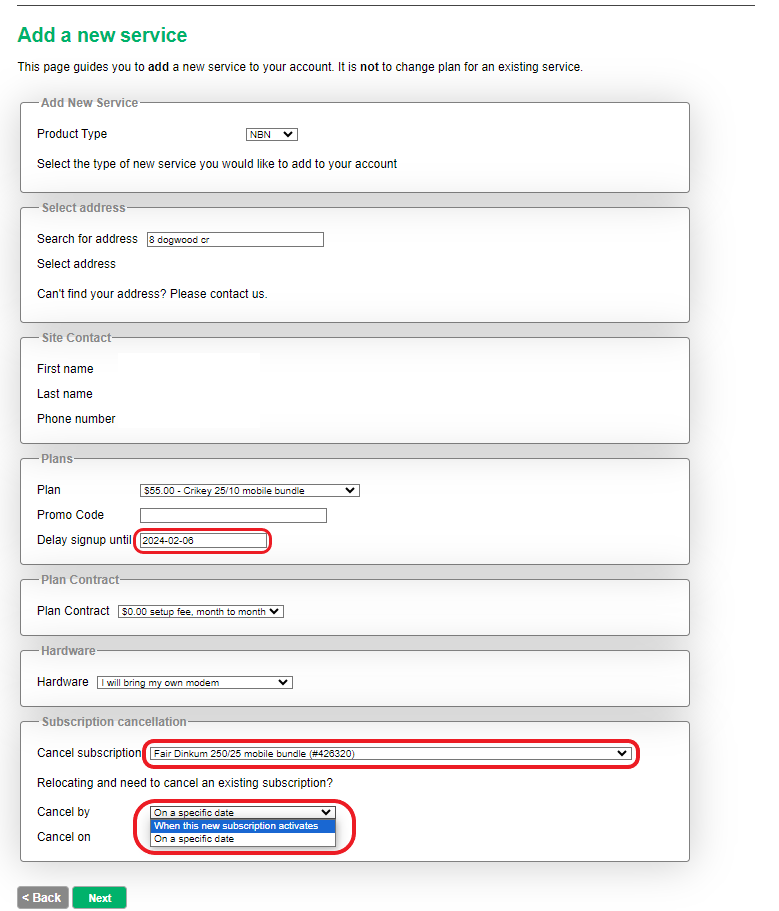
💡 Tip: Leave the activation date blank if you want your new service connected as soon as possible.
Move your service using the myMATE app (mobile)
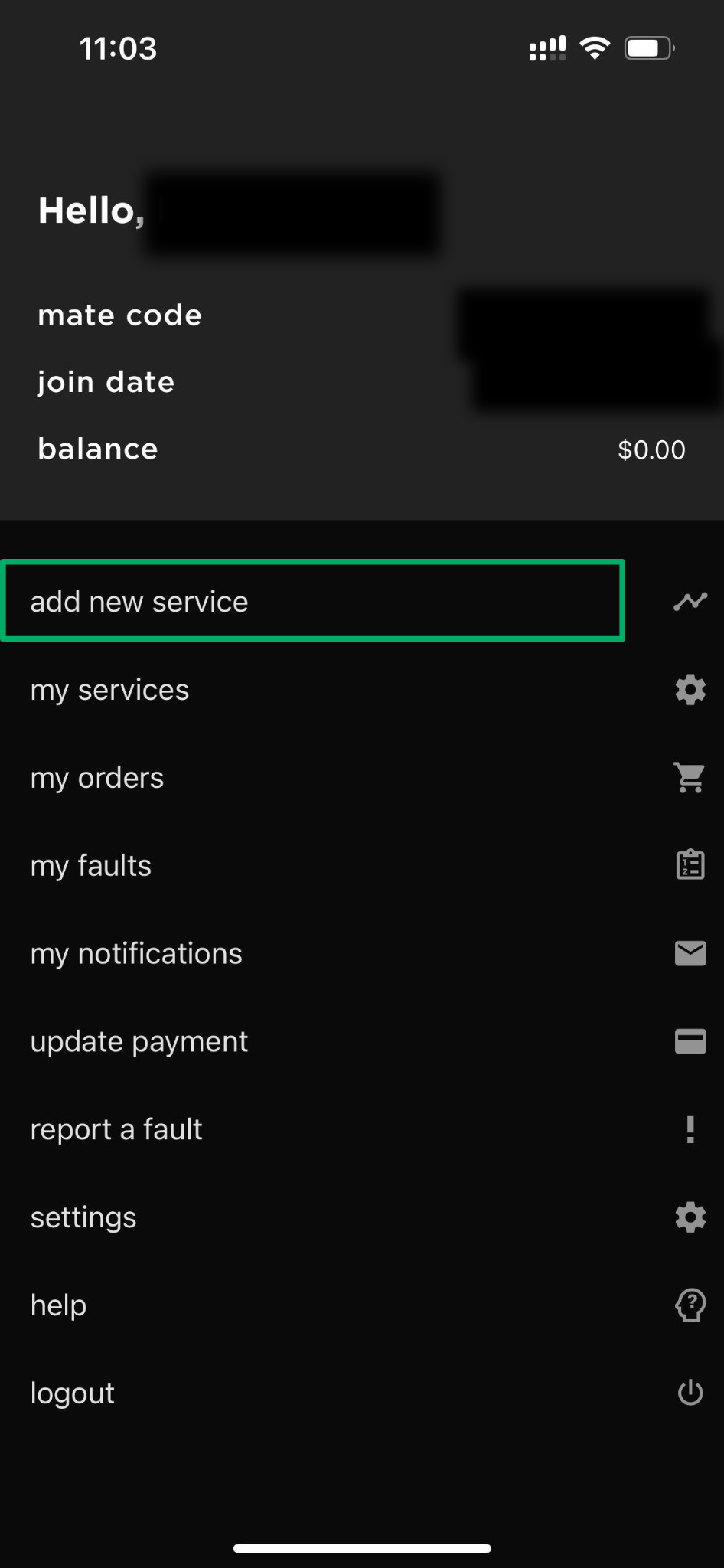
- Tap “Add new service”
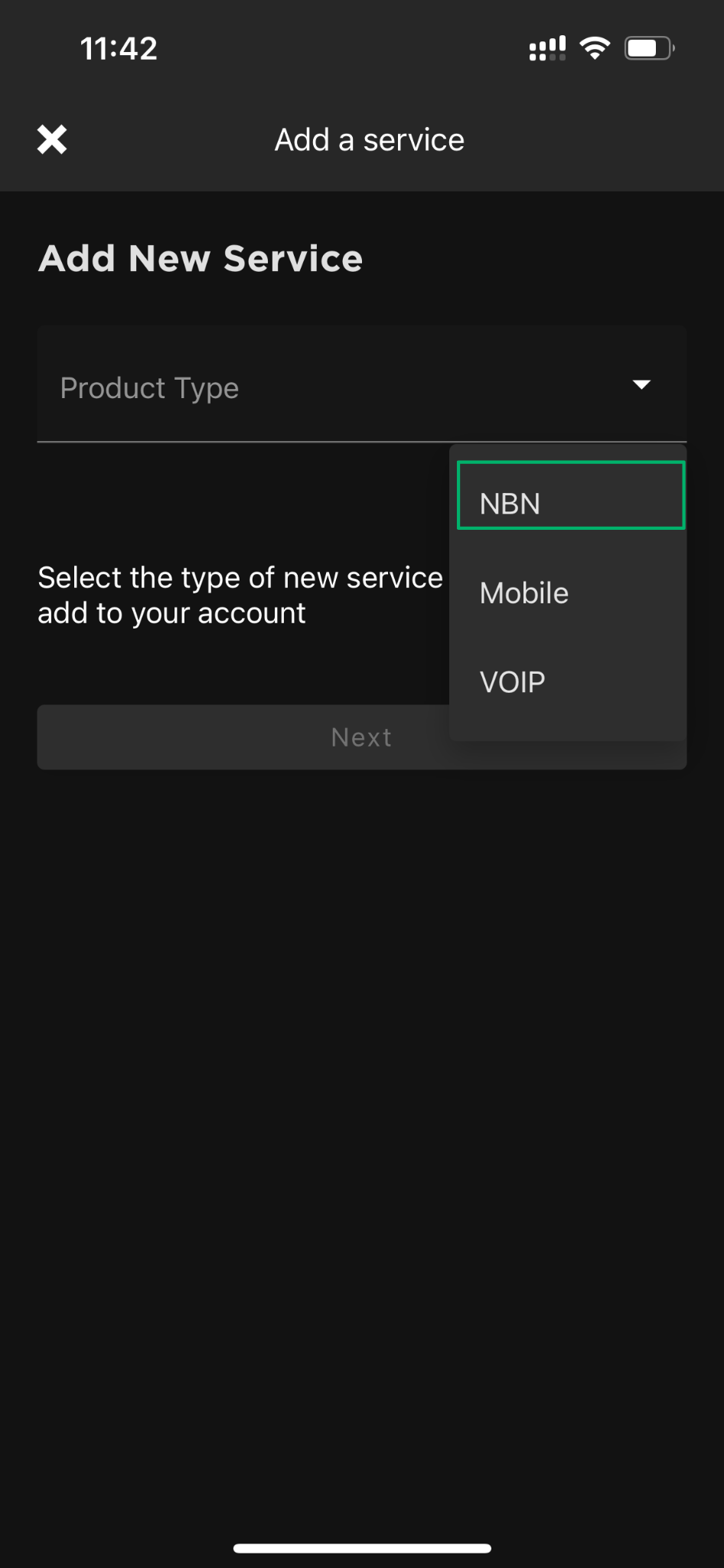
- Choose internet and tap Next
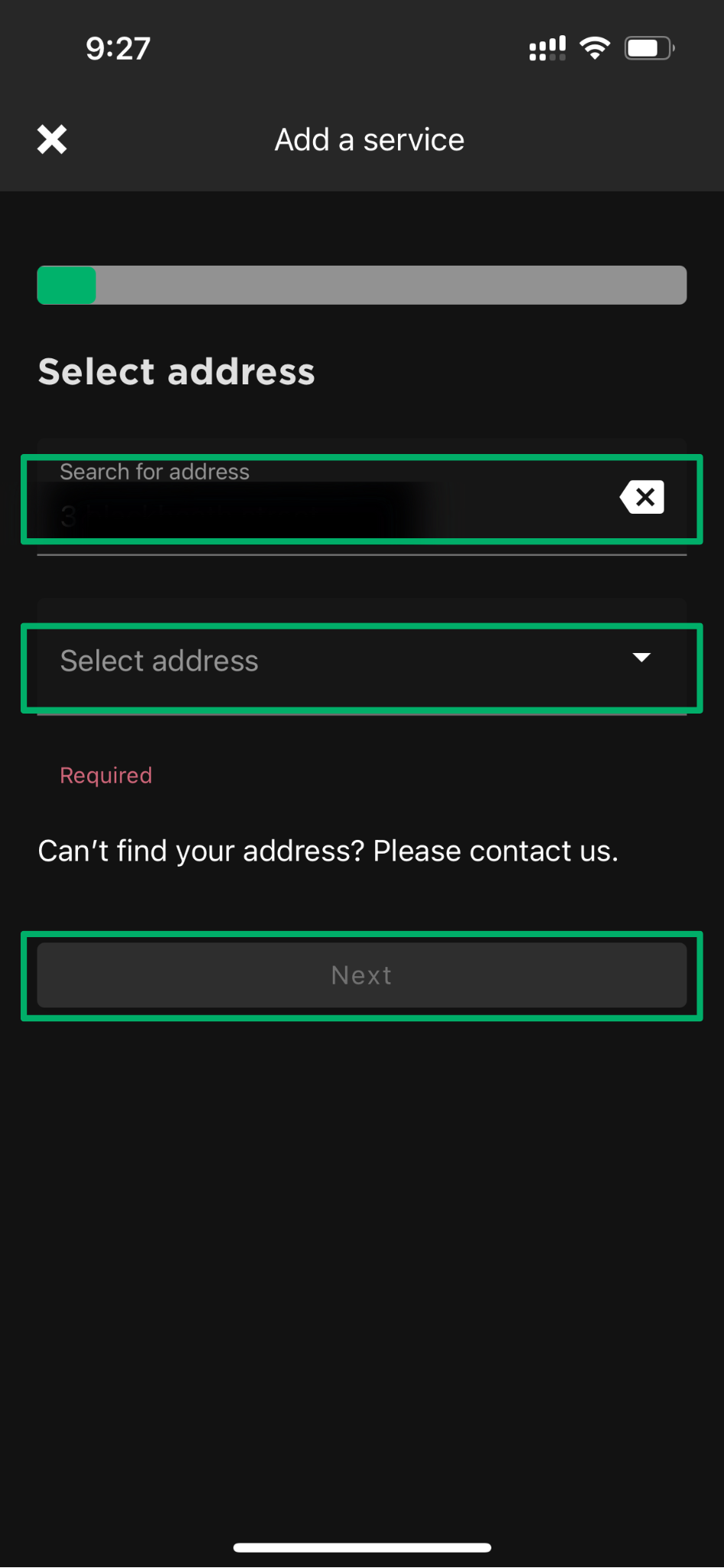
- Enter and select your new address, then tap Next
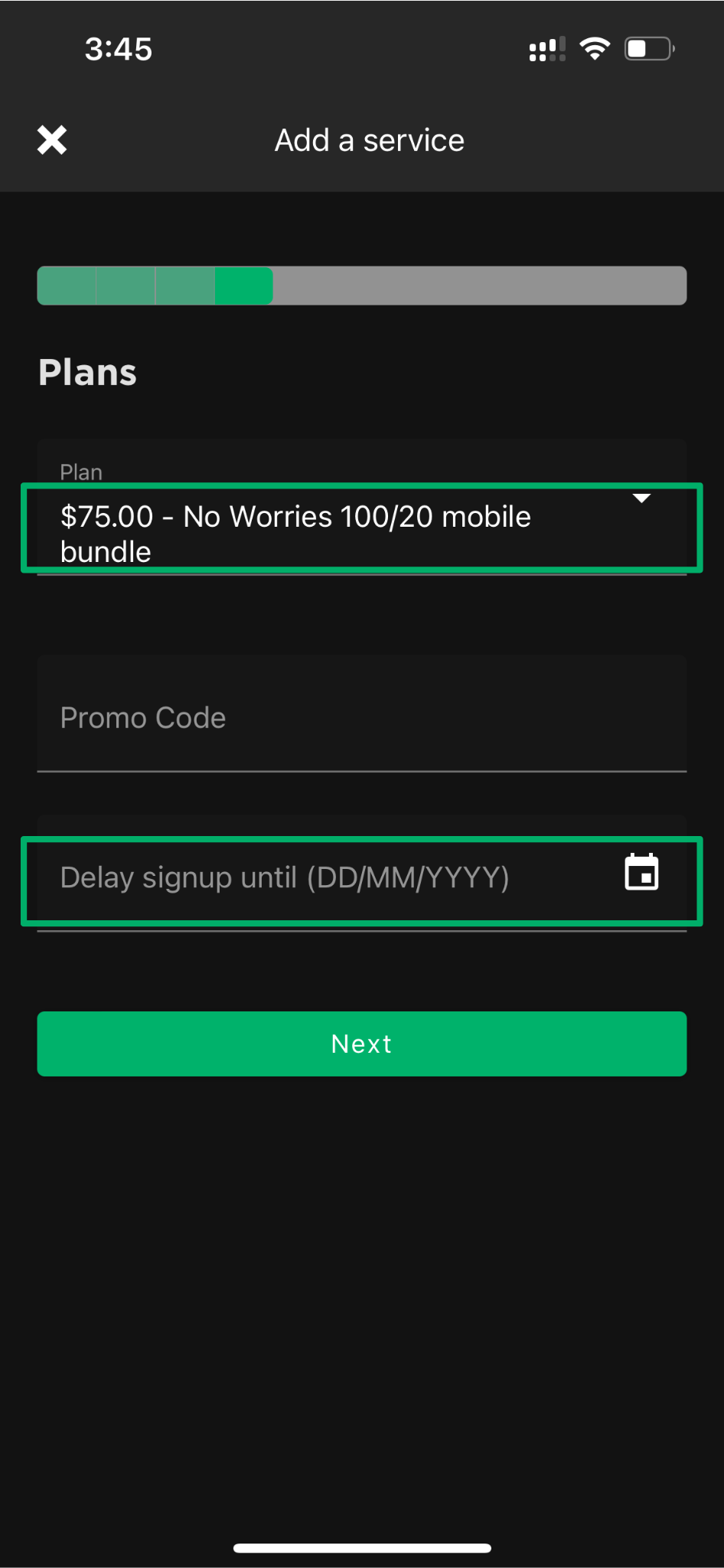
- Choose your plan
- Set your activation date (or leave blank for ASAP)
- Select the service you’d like to cancel (or keep it active)
- Choose when to disconnect your old service
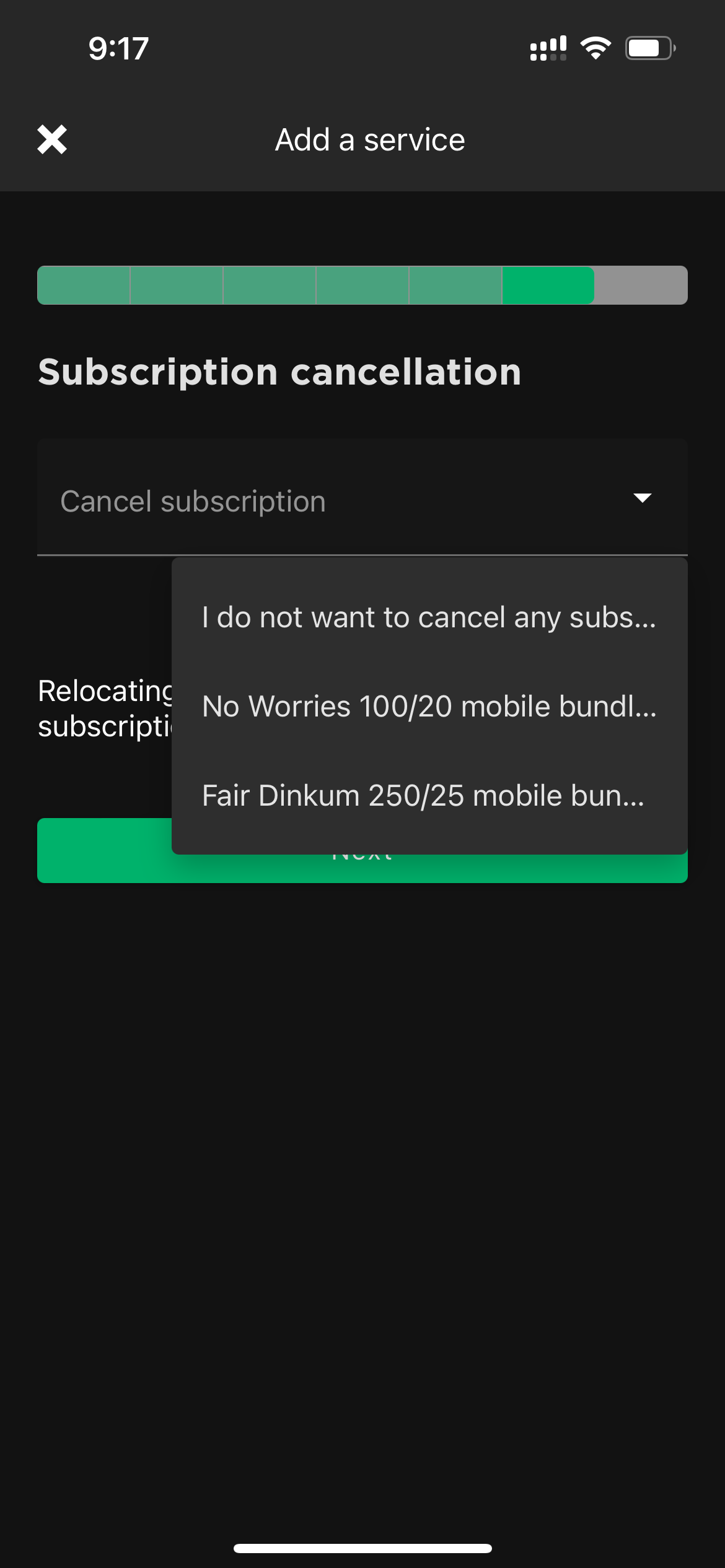
What happens to your current service?
Your current service won’t cancel automatically — you’ll need to choose what happens to it.
- Disconnect it when your new service is active
- Choose a specific disconnection date
- Keep it active for now
💡 Tip: If you keep your old service active, you’ll continue to be billed for it until it’s cancelled.
💬 Need help? If you get stuck at any point, get in touch with us and we’ll help you get set up at your new place.