nbn Fixed Wireless – BYO modem/router setup guide

Step 1: Locate the nbn connection box

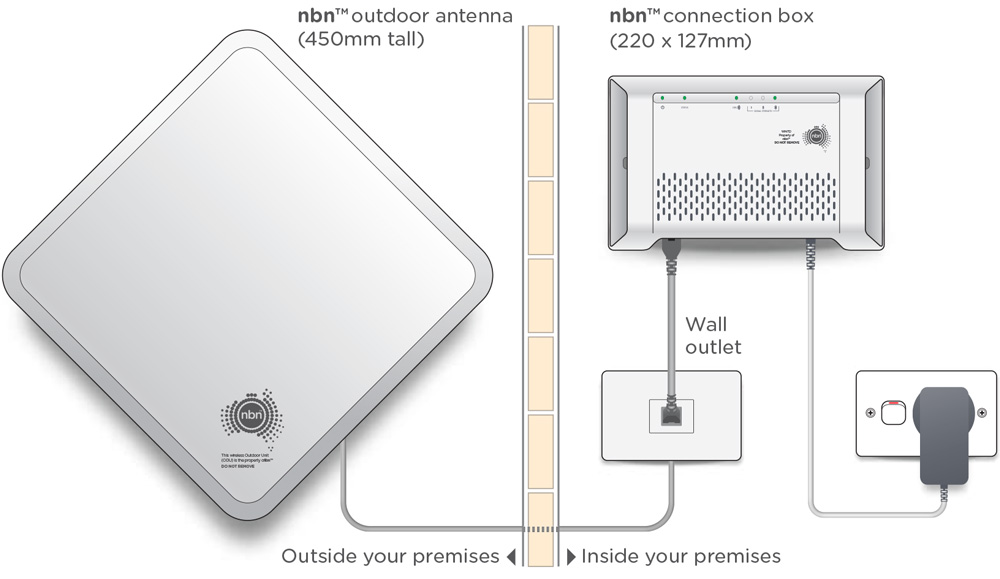
Find the indoor nbn Fixed Wireless connection box in your home. This will usually be installed in a garage or main living area, but may be located in an odd location such as a wardrobe, cupboard or underneath a staircase.

Ensure you check your entire home for the nbn Fixed Wireless connection box including any unusual places that you may not expect.

Nbn Co Device (1)

Step 2: Connect your modem/router

You will need to plug your modem/router into your nbn Fixed Wireless connection box.

First, ensure that the included power cable from the power port on the back of the nbn Fixed Wireless connection box is plugged in and secure. Plug the other end of the power cable into a power wall outlet in your home and switch the powerpoint on.

After a few minutes, you should notice the POWER, STATUS and ODU lights on the front of the device turn solid green. You should also see at least one SIGNAL STRENGTH light on (this will usually be flashing).

💡 Tip: If the STATUS or ODU lights on your nbn Fixed Wireless connection box remain red or are off, please contact our support team for further troubleshooting.

Now, take your modem/router’s power supply cable and use it to connect your modem/router’s power port to an electrical outlet. Switch the power outlet on.
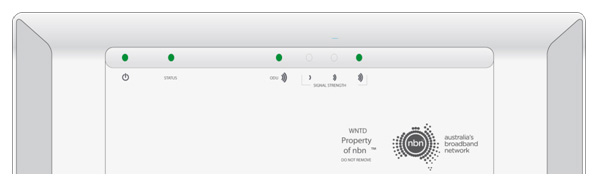
Nbn Device (1)

Take the included Ethernet cable and plug one end into the required port marked UNI-D or PORT on the bottom of the nbn Fixed Wireless connection box.

The active UNI-D/PORT would have been sent to you via email and SMS – in many cases, this is usually UNI-D/PORT 1 but may be another number such as UNI-D/PORT 2, UNI-D/PORT 3 or UNI-D/PORT 4.
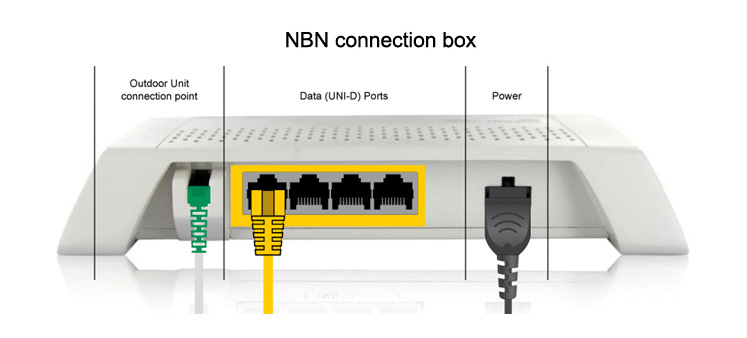
Nbn Connection Box (1)

Plug the other end of this Ethernet cable into the WAN port on your modem/router. The WAN port may be labelled INTERNET, WAN/LAN or FIBRE depending on the make and model of your modem/router.

Step 3: Configure your modem/router

  1. Make sure your Ethernet cable is connected from the active UNI-D/PORT port on the nbn connection box to the WAN port on your modem/router.
  2. Connect a computer, laptop, smartphone, or tablet to your modem/router using Wi-Fi or an Ethernet cable.
  3. Open a web browser and enter your modem/router’s default IP address (often 192.168.1.1, 192.168.20.1, 10.1.1.1 or 10.0.0.138). You can usually find this printed on the back or bottom of the device.
  4. Log in using the default username (usually admin) and password (usually admin or password). If these don’t work, check your modem’s manual, manufacturer’s website, or perform a factory reset.
  5. Locate the Internet Setup or WAN Setup section. If your modem has a Setup Wizard, follow it. When prompted for connection settings, enter:
    • Connection Type / Encapsulation: PPPoE (preferred) or IPoE/DHCP
    • Service Type / Access Type: Ethernet WAN
  6. If using PPPoE, enter the username and password from your MATE welcome email.
  7. Enable IPv6 if available, set to DHCPv6 or Auto Config (SLAAC).
  8. Save your settings and wait for your modem to connect. Lights should be green, blue or another ‘positive’ colour. Some lights may flash to indicate activity.
  9. Test your connection by visiting a website. If it works, you’re online.
💡 Tip: If you get stuck during setup or your modem won’t connect, contact our support team.